


Changes to Microsoft Teams: In-meeting sharing and guest access

ramsac Team sharing blog

Microsoft are constantly looking for ways to refine and improve the Teams application, two updates coming in February/March are:

  1. Changes to how users will share content during meetings
  2. Changes to the default settings for guest access.

In this blog we explain what these updates mean to users.

In-meeting share experience

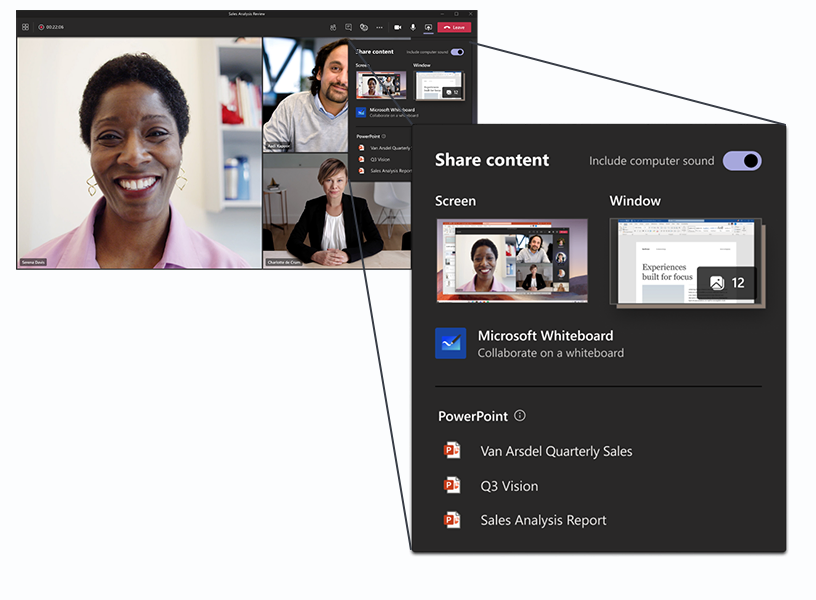
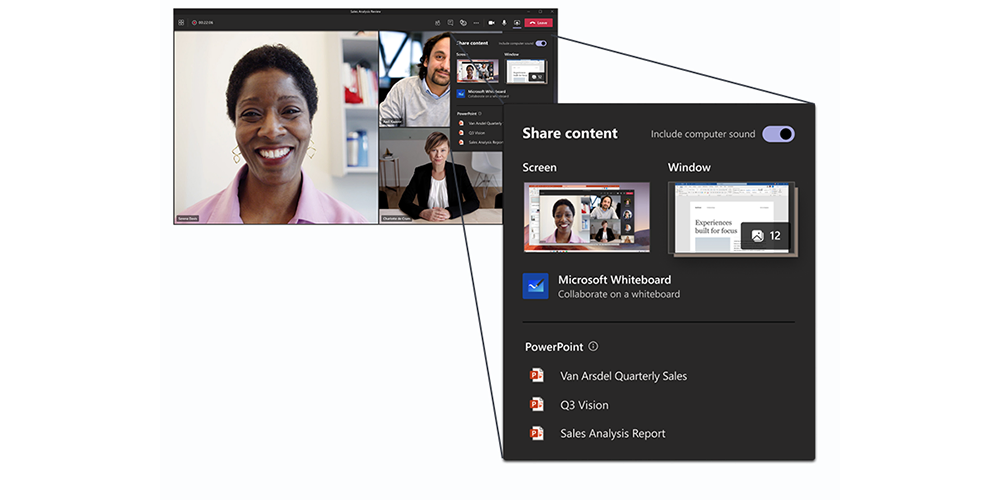
This feature will be rolled out through February and March. When using Microsoft teams on a desktop (either PC or Mac) users will see a new design when sharing their screen, window, Whiteboard, or PowerPoint during meetings.

User will click on the usual sharing button Teams share button screenshotand will see the new layout below

Teams sharing button

Changes to guest access

Within Microsoft Teams organisations are able to provide guest access to Teams and other resources to people outside their organisation, this functionality is currently turned off by default, and therefore needs to be switched on to allow the access. From the 8th of February guest access will be switched on automatically for all Teams users. This will bring Teams guest capability into alignment with the rest of the suite, where the setting is already on by default.

Organisations should consider if they are happy for Teams owners to add external guests to their teams, and should ensure sensitive information isn’t being shared within the team. It is important to note it’s not possible to control access to specific channels within a team, so by giving a guest access to a Team, they can see everything within it.

Organisations can choose to keep guest access disabled by changing the Guest access setting to “Off” instead of “Service default”. Instructions for how to configure the Teams guest access settings can be found here: Teams guest access settings

If you are unsure which is most appropriate for your organisation and are keen to control access to information on your system, please contact one of our relationship managers who will be happy to discuss your options.

How to use Teams.

In our short demo vlog, learn how to use Microsoft Teams for chatting to colleagues and scheduling video calls with people both inside and outside your organisation

Related Posts

  • Microsoft Publisher is being retired, here’s what it means for you

    Microsoft Publisher is being retired, here’s what it means for you

    Microsoft 365

    Microsoft Publisher is being retired in October 2026. Find out what this means for your files, how to prepare and which tools can replace it. [...]

    Read article

  • Introducing the ramsac Data Security Framework 

    Introducing the ramsac Data Security Framework 

    Microsoft 365

    Struggling to keep your Microsoft 365 data secure and compliant? ramsac’s Data Security Framework offers a clear, practical approach to understanding and managing your data, reducing risk, and building [...]

    Read article

  • Microsoft Business Standard vs Premium: Which is right for you?

    Microsoft Business Standard vs Premium: Which is right for you?

    Microsoft 365

    Discover the key differences between Microsoft 365 Business Standard and Business Premium plans. [...]

    Read article

  • How to set up a secure password policy in Microsoft 365

    How to set up a secure password policy in Microsoft 365

    CybersecurityMicrosoft 365

    Discover the benefits of a robust Microsoft 365 password policy and how to set it up. Strengthen your organisation's cybersecurity and protect your data today. [...]

    Read article

  • What is Microsoft Loop and why should you use it?

    What is Microsoft Loop and why should you use it?

    Microsoft 365

    In the world of digital collaboration, finding the right tool to keep your team productive and connected is essential. Microsoft Loop is the latest addition to the Microsoft 365 family, designed for [...]

    Read article

  • Understanding Data Exposure Risk in SharePoint and OneDrive

    Understanding Data Exposure Risk in SharePoint and OneDrive

    CybersecurityMicrosoft 365Technical Blog

    As the way we work continues to evolve, proactively managing data exposure in SharePoint and OneDrive is essential to safeguard sensitive information and maintain trust in an AI-driven world. [...]

    Read article

Quiz yourself

Are you more cyber savvy than an 11 year old?

11-14 year olds get asked these questions in school. Could you get these right?