


Microsoft Teams has become a staple application in offices all over the world. Microsoft describes the platform as a “chat-based workspace in Office 365.” It’s used by all kinds of businesses as a way to enable increased collaboration among staff and external stakeholders. Microsoft is continually rolling out new features to improve Teams, in this blog we will highlight 3 of the latest which are either available now, or due to be rolled out in the next couple of months.
Speaker Coach in Microsoft Teams Meetings
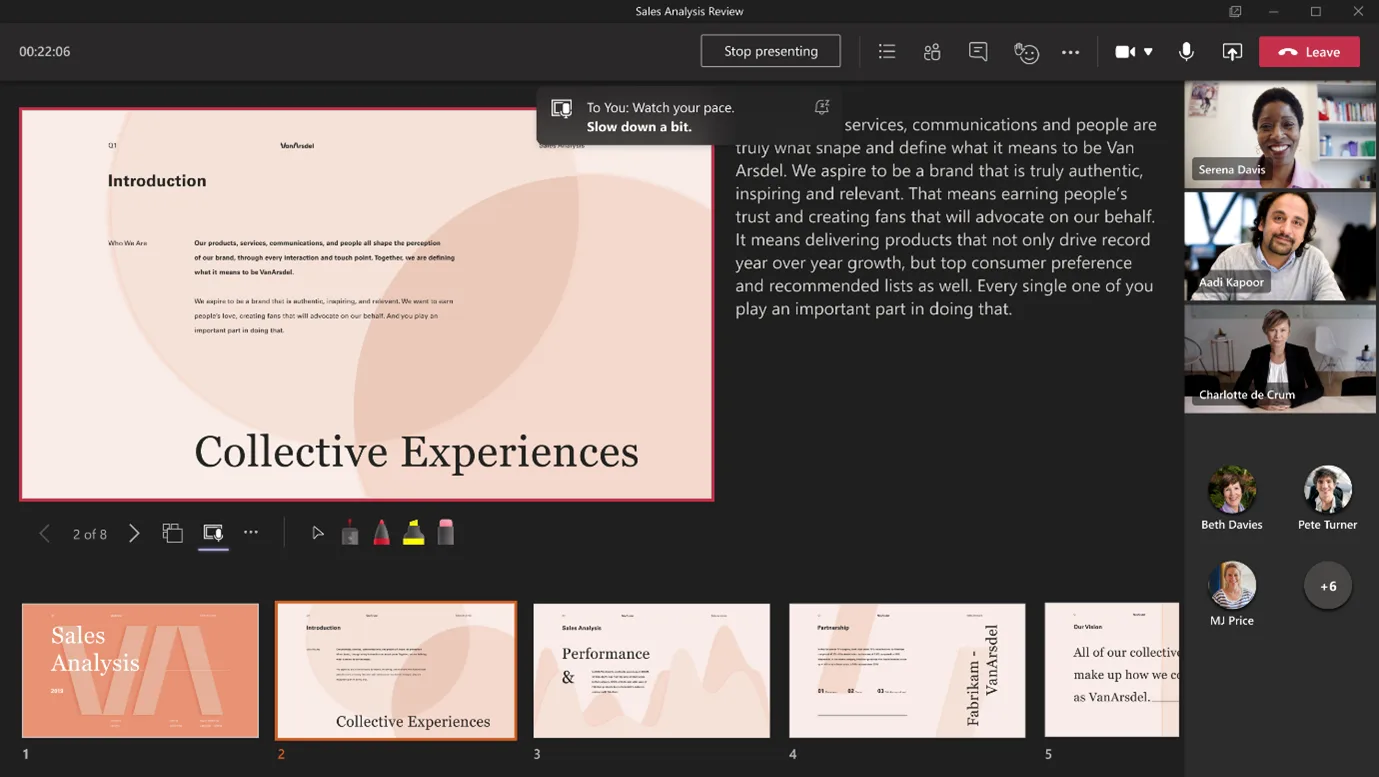
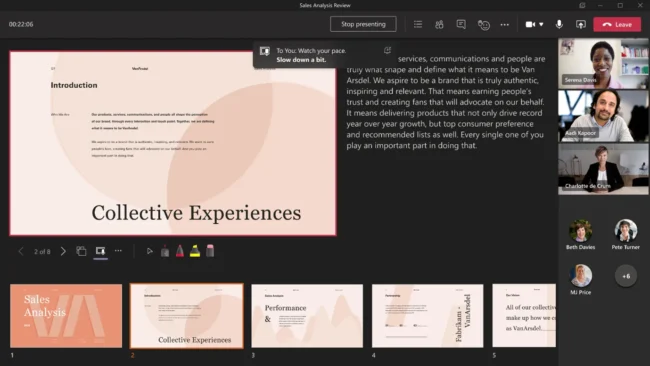
Speaker Coach will change the way you present. Available for Teams Meetings, Speaker Coach provides private, personalised feedback on your speaking and presentation skills in both real-time as well as post-meeting in a summary. Speaker Coach evaluates your pacing, pitch, your use of filler words, informal speech, euphemisms, and culturally sensitive terms, and it detects when you’re being overly wordy or are simply reading the text on a slide. This is an invaluable tool for anyone who gives presentations as it allows you to prepare in private to ensure your presentations are engaging and effective.
Availability:
Due end of July 2022
How to enable Speaker Coach.
- Check your Microsoft 365 admin has enabled the policy for speaker coach in order for their users to be able to turn on speaker coach for themselves in meetings.
- During the meeting click on the 3 dots then, select the “Turn on Speaker Coach” button. This will show real-time messages on your screen with tips.
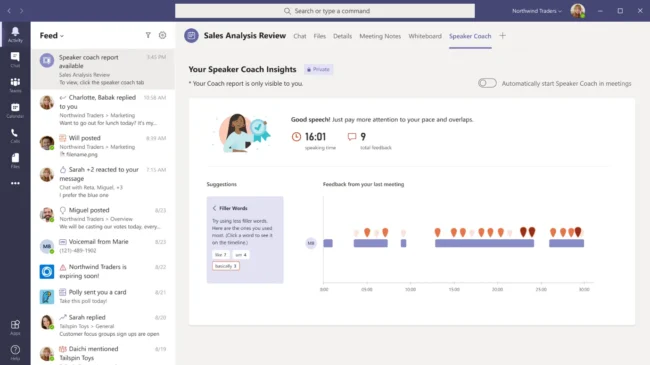
- After the meeting your Speaker Coach insights will be available for you to review.
Speaker Coach and PowerPoint
Speaker coach is new to Teams but has been available in PowerPoint for some time. To use Speaker Coach in PowerPoint, go to the “Slideshow” ribbon tab. There, select the “Rehearse With Coach” button. Click start rehearsing and run through your presentation. This will give you real-time tips on body language, cadence and other common issues. Plus, you will receive a comprehensive report at the end.
Facial filters in Microsoft Teams Meetings!
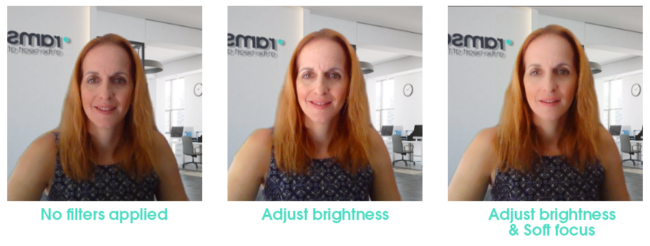
Microsoft have added two new filters to Teams available for video meetings which help participants to look their very best. The Adjust brightness setting projects a soft light onto the face of participants which enhances the video quality when lighting is poor while the soft-focus filter reduces the effect of facial wrinkles by applying a smoothing effect. Although no miracles are promised, the new filters should help everyone look a little better the next time they turn on video during a Teams call.
Availability:
Now
How to enable facial filters.
- Prior to joining a meeting click on the settings button
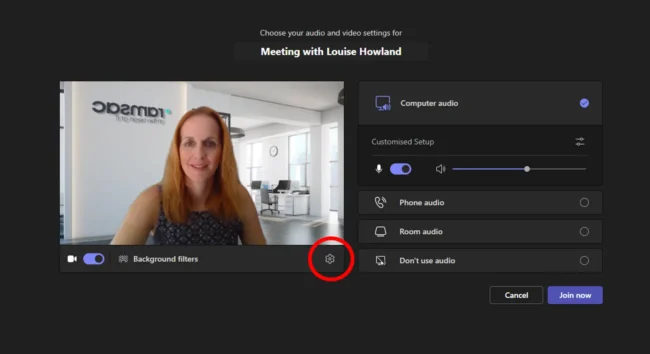
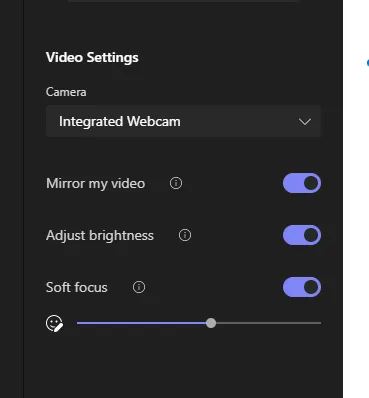
- Then enable Adjust brightness to brighten the image, and Soft focus to smooth out lines. Soft focus is adjustable so you can increase or decrease the effect.
See below for the subtle difference this makes to your appearance!
Microsoft Viva: Quiet time settings in Teams and Outlook
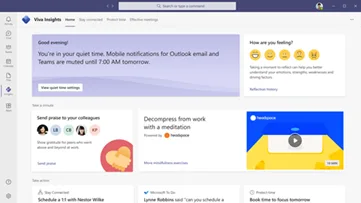
Quiet time has been created by Microsoft to be used in the Viva Insights Teams app and will affect Teams and Outlook helping users to build better boundaries between work and personal time. Covid and home working has bought many benefits both to organisations and employees however it has blurred the line between people’s personal life and work life. To help combat this Viva Insights are rolling out quiet time settings this September. With this feature, users can configure quiet time to silence mobile notifications from Outlook and Teams outside of working hours as well as provide personalised insights on how consistently users are disconnecting. Users can modify quiet time settings any time and will be able to set quiet time directly from Teams and Outlook mobile. Along with setting up quiet time, users can use the virtual commute experience available in the Viva Insights Teams app to be intentional about unplugging after-hours.
Availability:
September 2022
How to use Teams more effectively
Teams act as a collaborative workspace that combines features of SharePoint, OneDrive, and many other cloud applications, into one central location, and brings groups of users together into dedicated workspaces where they can chat, have video calls and collaborate on documents simultaneously. Click below for some more useful content on Teams