






In an effort to make Teams even more collaborative, Microsoft has been working on their new Fluid framework. In Microsoft Teams, these capabilities are referred to as ‘Loop Components’.
What is Teams Fluid/Loop Components?
As Microsoft have explained:
“Fluid components for Teams meetings, OneNote, Outlook, and Whiteboard make it easier to collaborate synchronously and asynchronously across Teams and Office apps.”
Microsoft’s Fluid Framework is set to bring some significant changes to how their applications work. One of the biggest benefits is the synchronisation capabilities it offers, which mean that changes made by multiple users to the same content, is visible to other users straight away.
Teams Loop Components
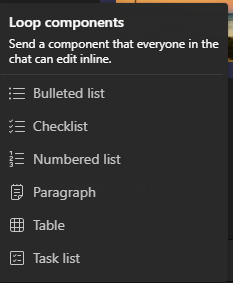
In Teams, Microsoft’s Loop Components offers the following functions:
- Bulleted List
- Checklist
- Numbered List
- Paragraph
- Table
- Task List
Each of these can be entered into a Teams chat, either between two users or in a group chat, and edited in real time by anyone who has access.
To access these components, simply click on the highlighted symbol below while in a chat:

Then the list of components will appear for you to choose from:
These capabilities can be useful in a number of circumstances. Whether employees need to quickly prepare for a meeting and collaborate on a checklist, or an email to a customer needs to be proofed and edited before sending.
Here’s a quick rundown on what each of the Teams Loop Components do:
Loop List – Bulleted List
The bullet list is a straightforward function that allows users to work together when thinking of anything from a To Do list, to a list of potential meeting attendees. The fact that this can be edited in real time means that it’s easier for a team to stay on top of developments.

Teams Loop – Checklist
The checklist feature is ideal for things like lists of items to order, or To Do lists which multiple employees need to work through. All those who have access will be able to see when items get checked off, saving confusion and potential problems with miscommunication.

Teams Loop – Numbered List
The numbered list can be helpful for issuing instructions to a team. It ensures that everyone is on the same page, and again there is less room for error.

Teams Loop – Paragraph
This feature needs little explanation. It enables users to write as much or as little as they like, which colleagues can collaborate on. Using the Loop paragraph component is especially helpful for short pieces of content that need to be proofread quickly, such as reactive social media posts or announcements.

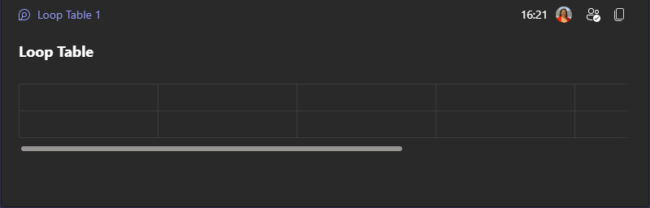
Teams Loop – Table
The table component can be helpful for timetables among teams, or for general organisation. When it comes to organising time, using the Loop table option can be ideal because senior staff can check and edit it as necessary.
Teams Loop – Task List
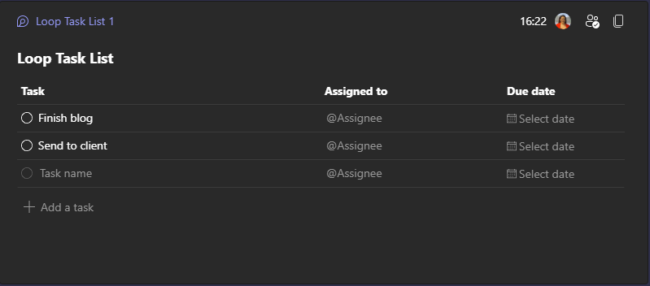
The Loop task list function is arguably one of the most helpful fluid components in Teams, because it’s possible to ‘tag’ people and set due dates. This means that all those who have access will be alerted to any tasks that have been assigned to them. It’s worth noting, however, that only people within the Teams chat can be assigned to tasks.
Using Teams Loop Components to collaborate
Like most Teams functions, the Loop Components are extremely user friendly. While in a chat, if someone has used a Loop feature, any user can simply click onto it and edit as desired. All those within that chat will see every change that’s made to the content, in real time.
Finding out how to use Microsoft Teams effectively will have a huge beneficial impact on the day to day running of any business. So many companies that use the platform have only skimmed the surface of what this software offers, but Teams has so many functions designed to make life easier. Speak to the ramsac experts for more advice on Teams, and all things Microsoft Office 365.